What Is a Checksum Error? Fixes & Causes
Introduction
You turn on your computer. Instead of Windows loading, a black screen appears with a single frightening message. That message often reads: “Checksum error.” What is a checksum error? This guide gives you a clear answer. You will learn why it happens, how to fix it in minutes, and how to protect your files forever.
The Simple Definition of a Checksum Error
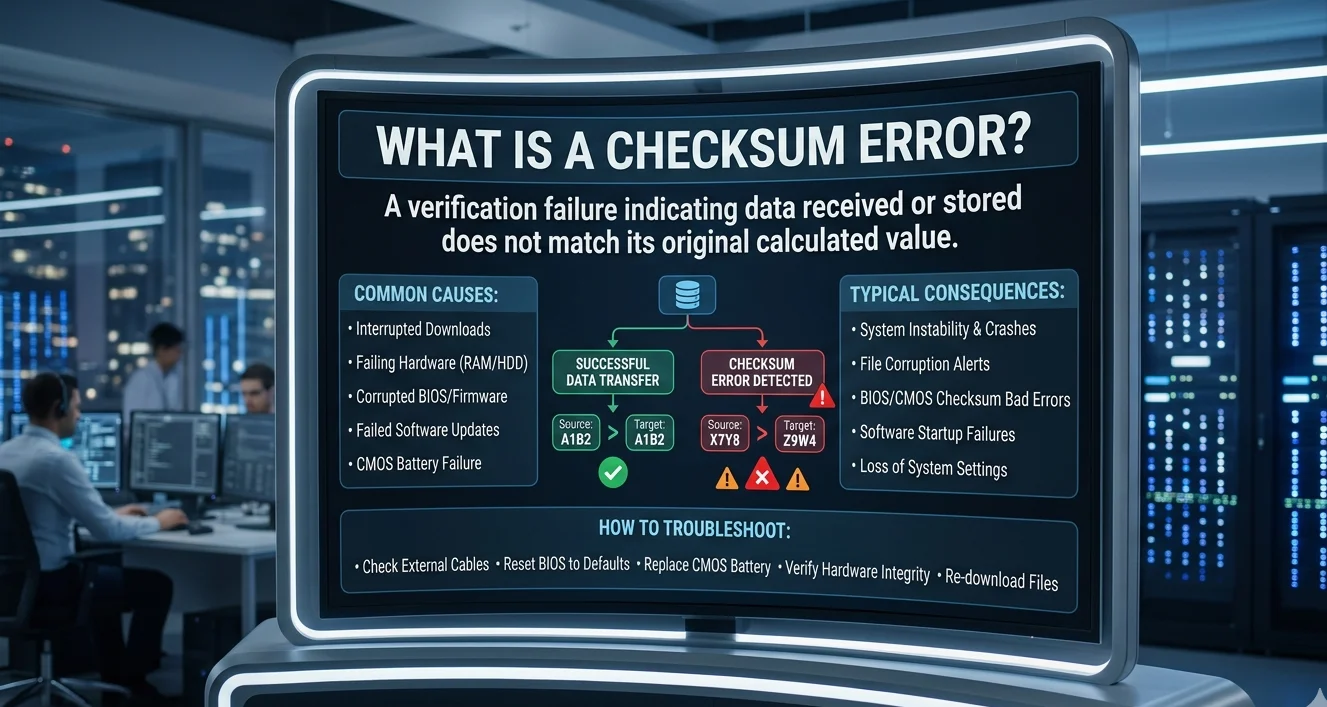
A checksum error means two copies of the same data do not match.
Think of a checksum like a digital fingerprint. Every file, every piece of memory, every storage sector has a unique fingerprint. When your computer creates or saves data, it also calculates this fingerprint. Later, it recalculates the fingerprint. If the new fingerprint does not match the old one, the computer throws a checksum error.
The computer then refuses to use that data. It prefers to crash or freeze rather than load corrupted information.
How Checksums Work in Plain English
Checksums use simple math. The computer adds up all the 1s and 0s in a file. It then stores that total as a small number or letter sequence.
For example, imagine a file contains the number sequence 2, 4, 6. The checksum might be 12 (the sum). Later, if the file changes to 2, 5, 6, the sum becomes 13. The computer sees 12 vs 13 and instantly knows the file is damaged.
Real checksums use more complex math called hash functions (MD5, SHA-1, SHA-256). But the idea stays the same: a small check value verifies a large block of data.
Common Places You Will See a Checksum Error
Checksum errors appear in four main areas of your digital life.
| Location | Typical Error Message |
|---|---|
| BIOS / POST | “CMOS Checksum Bad” or “CMOS Checksum Error” |
| Hard Drives | “Data error (cyclic redundancy check)” |
| File Downloads | “The file is corrupted” or “Hash mismatch” |
| Network Transfers | “Packet checksum invalid” |
Each location uses the same basic principle. But the fix depends on where the error appears.
BIOS Checksum Error: The Most Common Type
When you ask what is a checksum error on a desktop PC, the BIOS version is likely the answer.
The BIOS (Basic Input/Output System) stores your computer’s hardware settings in a small memory chip called CMOS. Every time you start the PC, the BIOS calculates a checksum for those settings. It compares that checksum to a saved value. If they differ, you see “CMOS Checksum Error.”
Why the BIOS Throws This Error
- Dead motherboard battery (most common cause)
- Overclocking that failed
- Power surge during shutdown
- New hardware that confuses the BIOS
- Malware that corrupted the BIOS settings
How to Fix a BIOS Checksum Error
Replace the CMOS battery first. This battery looks like a silver coin. It costs about five dollars. Pop out the old one, wait sixty seconds, insert the new one. Then enter the BIOS setup and load default settings. Save and exit. The error should disappear.
If the error returns, update your BIOS firmware. Visit the website of the manufacturer of your motherboard to download the most recent version. Use a USB flash drive to flash the update.
CRC Errors: The Hard Drive Warning
A Cyclic Redundancy Check (CRC) error is another form of checksum error. Hard drives use CRC to verify every sector of data.
When you copy a file and see “Data error (cyclic redundancy check),” your hard drive found a bad sector. The drive reads the sector’s checksum, but the actual data no longer matches.
What Causes a CRC Checksum Error
- Physical damage to the hard drive platter
- Aging drive with dying sectors
- Sudden power loss while writing data
- Loose or failing SATA cable
- Overheating inside the computer case
Fixing a CRC Checksum Error
Stop using the drive immediately. Every minute of operation can worsen the damage.
Run CHKDSK from the command prompt. Open Command Prompt as administrator. Type chkdsk C: /f /r and press Enter. Replace C: with your drive letter. This command scans for bad sectors and recovers readable data.
If CHKDSK fails, use data recovery software like Recuva or TestDisk. For physical damage, send the drive to a professional recovery service. Expect to pay three hundred to one thousand dollars.
File Download Checksum Errors
Software developers publish checksums alongside their downloads. You can use these to verify the file you downloaded arrived intact.
When you download a large file (like Windows ISO or Linux distribution), the file can pick up errors from a bad internet connection or a failing hard drive. The checksum error tells you the file is unsafe to install.
How to Check a File’s Checksum on Windows
- Download the file and the publisher’s provided checksum (usually MD5 or SHA-1)
- Open Command Prompt
- Type
certutil -hashfile "C:\path\to\file.exe" MD5 - Compare the result to the publisher’s checksum
If the two strings match, the file is perfect. If they differ, delete the file and download it again. Try a different mirror server or a wired internet connection.
Network Packet Checksum Errors
Every piece of data traveling over your home network or the internet gets broken into small packets. Each packet carries a checksum. When a packet arrives at its destination, the receiving device recalculates the checksum. A mismatch means the packet was damaged during travel.
The receiving device then asks the sender to resend that specific packet. You usually never see these errors. But if the error happens too often, your internet slows down or web pages fail to load.
Fixing Network Checksum Errors
- Replace old Ethernet cables (Cat5e or Cat6 recommended)
- Move your Wi-Fi router away from microwaves and cordless phones
- Update your network card driver
- Disable “TCP Checksum Offloading” in your network adapter settings
What Is a Checksum Error in Gaming and Software?
Video games and applications use checksums to prevent cheating and file tampering.
When you install a game, the installer creates checksums for every game file. Later, when you launch the game, it recalculates those checksums. If you modified a file (to add a cheat or mod), the checksum no longer matches. The game refuses to launch or bans you from online play.
Many anti-cheat systems (Easy Anti-Cheat, BattlEye) rely entirely on checksum validation.
How to Fix Game Checksum Errors
- Verify game files through Steam, Epic, or Battle.net
- Disable mods and restore original game files
- Reinstall the game completely
- Run a memory test (see below)
Memory (RAM) Checksum Errors
Your computer’s RAM does not use checksums in the same way as storage. But ECC RAM (Error-Correcting Code memory) does. Servers and workstations use ECC RAM to detect and fix single-bit errors.
A memory checksum error in a server log means a cosmic ray or hardware flaw flipped a single bit. ECC RAM corrects the error automatically. Non-ECC RAM (used in most home PCs) would just crash.
Testing Your RAM for Errors
Download MemTest86. Boot it from a USB drive. Let it run overnight. If you see any red lines or “errors detected,” your RAM is failing. Replace the faulty stick immediately.
Checksum Error vs Hash Mismatch: What’s the Difference?
Nothing. They are the same thing.
Hash mismatch is just a more technical name for a checksum error. Cryptographers use “hash” instead of “checksum” for security-focused applications (like passwords and digital signatures). But the underlying math is identical.
| Term | Used For |
|---|---|
| Checksum | Error detection in files, memory, network packets |
| Hash | Password storage, file verification, blockchain |
| CRC | Hard drive and network error checking |
| Fingerprint | Casual term for any hash value |
How to Prevent Checksum Errors Forever
You cannot stop every checksum error. But you can reduce them by 95 percent with these five habits.
Use a UPS Battery Backup
Power surges and sudden shutdowns corrupt data mid-write. A Uninterruptible Power Supply gives you clean, constant power. It also shuts down your PC safely during blackouts.
Replace Old Hard Drives Every 3-5 Years
Hard drives wear out. After three years, the failure rate climbs. Replace your main drive before it dies. Use SSD drives when possible because they have no moving parts.
Keep Your Computer Cool
Heat kills electronics. Keep your PC case dust-free. Ensure all fans spin freely. Replace thermal paste on your CPU every two years.
Download Files from Trusted Sources
Official websites publish checksums. Use them. Never install software that fails a checksum match. That file could contain malware or be partially downloaded.
Run Regular File Integrity Checks
Use Microsoft’s File Integrity Monitor (part of Windows Defender) or open-source tools like OpenPGP. These tools calculate checksums for your important files weekly. You receive an alert the moment a file changes unexpectedly.
Step-by-Step: Fix a “CMOS Checksum Error” on Any PC
Follow this exact order. Do not skip steps.
- Turn off the computer and disconnect the power supply.
- Open the computer case (desktop) or remove the bottom panel (laptop).
- Locate the coin-cell battery on the motherboard. It looks like a silver quarter.
- Remove the battery using a small flathead screwdriver. Wait 60 seconds.
- Insert a new CR2032 battery (available at any drugstore or online).
- Close the case, plug in the power, and turn on the PC.
- Press F2 or Del repeatedly during boot to enter BIOS setup.
- Press F9 to load default settings. Press F10 to save and exit.
The error message should vanish. If it remains, your motherboard may have failed.
Frequently Asked Questions (FAQs)
What is a checksum error in simple terms?
A checksum error means a file or piece of data has changed from its original form. Your computer detects this change by comparing a digital fingerprint (the checksum) to a saved copy. When the fingerprints do not match, the computer refuses to use that data.
Can a checksum error destroy my files?
No. The error itself does not destroy anything. It only tells you that existing damage has already occurred. The files may already be corrupted. But ignoring the error and continuing to use the drive can make the damage worse. Always back up your data immediately after seeing a checksum error.
How do I fix a checksum error without losing data?
Replace the CMOS battery first if the error appears during boot. For hard drive errors, run CHKDSK in read-only mode (chkdsk C: /f). Then copy your most important files to an external drive before attempting deeper repairs. Data recovery software can often pull files from drives with checksum errors.
Why does my computer show a checksum error every time I start it?
A dead CMOS battery is the number one cause. Replace it with a new CR2032 battery. If the error continues, your BIOS settings may be corrupted. Update your motherboard’s BIOS firmware. In rare cases, the motherboard itself is failing and needs replacement.
What distinguishes a CRC error from a checksum error?
They are the same type of error. CRC (Cyclic Redundancy Check) is a specific mathematical method for calculating checksums. Hard drives and network devices use CRC. BIOS uses a simpler checksum. But both mean “data does not match the expected value.”
Where can I learn more about verifying file checksums?
Microsoft provides the certutil command built into Windows. Apple macOS includes shasum in the Terminal. Linux users can type md5sum or sha256sum. For graphical tools, download QuickHash or HashCheck. The National Institute of Standards and Technology (NIST) publishes official hash standards online.
Why Understanding Checksum Errors Saves You Money
A single checksum error can cost you hundreds of dollars.
When a hard drive throws a CRC error, many people panic and buy a new computer. They pay $800 to $1,500 to replace a machine that just needs a $5 battery or a $50 new drive.
Knowing what is a checksum error lets you diagnose the problem in two minutes. You replace the battery. You run CHKDSK. You verify file hashes. You fix the issue yourself for pocket change.
Tech repair shops love checksum errors. They charge $150 for a “diagnostic fee” and another $100 to “repair the CMOS.” You can perform the same repair with a screwdriver and a trip to the drugstore.
Final Word: Take Control of Your Data
You now understand what is a checksum error and how to fix every version of it. The battery replacement solves most boot-time errors. CHKDSK rescues failing hard drives. Hash verification keeps your downloads safe. Network checksum fixes improve your internet speed.
Write down the steps for replacing a CMOS battery. Bookmark the CHKDSK command. Download MemTest86 today and test your RAM before it fails.
Want to test your computer right now? Open Command Prompt and type sfc /scannow. This command checks every Windows system file for checksum errors and repairs them automatically. Run it once a month. Your computer will thank you.