What Is BIOS Boot Order? Your Complete Guide to Boot Sequence Control
You press the power button, and instead of loading Windows, the computer shows a black screen. You inserted a bootable USB drive ten minutes ago, but the machine ignores it completely. These moments define the gap between frustration and control. Learning what BIOS boot order is hands you the key to dictate exactly which drive your computer reads first—every single time. You gain the power to rescue files, install operating systems, and banish startup errors before they steal your afternoon. This guide explains the entire boot sequence, shows you how to modify it safely, and answers every common question without unnecessary fluff.
What Is BIOS Boot Order? A Clear Definition with Real Meaning
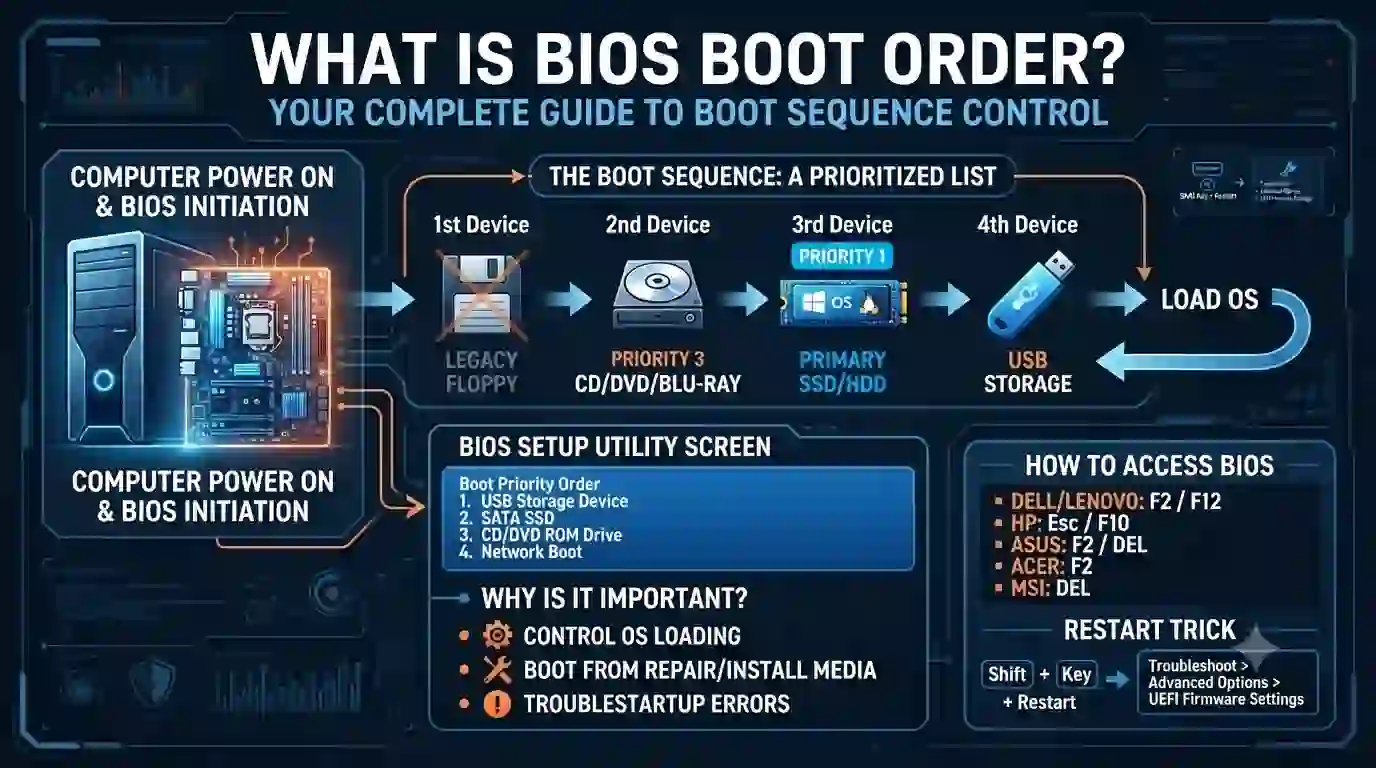
The BIOS boot order is a prioritized list stored on your motherboard that tells the firmware which storage devices to scan for a bootable operating system. At power-on, the Basic Input/Output System runs a Power-On Self Test, then consults this list. It checks the first device. If that device contains a bootloader like Windows Boot Manager or GRUB, the system loads it. If the device lacks a bootloader, the firmware moves to the second device and repeats the process. This continues until a working bootloader appears or the list is exhausted. Defining what bios boot order is in practical terms: it’s your startup traffic controller. When you want to launch a Linux installer from a flash drive, you move the USB to the top. When you need to boot from your regular NVMe SSD every morning, you place that drive first. This simple concept prevents you from getting stuck with an unbootable machine after a power outage, a failed update, or a corrupted hard drive.
How BIOS Boot Order Works: The Step-by-Step Startup Sequence
Every PC startup follows a precise chain. First, the power supply sends voltage to the motherboard. The CPU initializes, reads firmware from the SPI flash chip, and hands control to BIOS or UEFI. The firmware performs a quick hardware check—testing memory, storage controllers, and keyboard presence. Immediately after that, it reads the boot sequence saved in non-volatile memory. The controller fetches the first boot option and attempts to read its master boot record or GUID partition table. If the device contains a valid signature, the system passes control to the bootloader. If not, the firmware tries the second option and so on. The entire process takes only seconds, but understanding what bios boot order does under the hood lets you predict exactly what your machine will do before it even finishes the POST screen.
Why Boot Order Determines Your Computer’s First Breath
A misconfigured boot sequence causes chaos. Let us say a boot sector corruption occurs on your internal disk. You connect a Windows recovery USB and restart. Because the internal drive sits above the USB in the bios boot order, the firmware tries the broken disk first, fails, and throws a “Boot Device Not Found” error. You stand there, puzzled, holding a perfectly good rescue stick. Changing the order so the USB ranks first forces the computer to load the repair environment. This ability matters equally for clean OS installations, antivirus boot scans, memory diagnostic tools, and disk cloning operations. Knowing what bios boot order controls lets you bypass a dead primary drive and boot directly into diagnostic media without panic.
Common Boot Device Types You Can Prioritize
Motherboard firmware recognizes several device classes, each with its own entry in the boot list. Rearranging them grants instant flexibility.
- SATA / M.2 SSD and Hard Drive – internal drives where your daily operating system lives.
- USB Flash Drive / USB External HDD – portable storage for installers and rescue tools.
- Optical Disc Drive (DVD / Blu-ray) – still relevant for legacy recovery discs.
- Network Interface Card (PXE) – used by IT departments to deploy operating systems over a network.
- Internal Shell / EFI Shell – a UEFI command line that helps advanced diagnostics.
When you walk a friend through reinstalling Windows, you ask them to put the USB device at the top of the bios boot order. That single change dictates the entire process that follows.
How to Enter BIOS Setup: Brand-Specific Keys and Fast Access Tricks
Each manufacturer assigns a dedicated key to enter firmware setup. You must press it at the exact moment after the logo appears. If you miss the window, the OS loads and you must restart again. The table below covers the most common brands.
| Manufacturer | BIOS Setup Key | Boot Menu Key |
|---|---|---|
| Dell | F2 | F12 |
| HP | Esc or F10 | F9 |
| Lenovo | F1 or F2 | F12 |
| ASUS | Delete or F2 | F8 |
| Acer | F2 | F12 |
| MSI | Delete | F11 |
| Gigabyte | Delete | F12 |
| Microsoft Surface | Hold Volume Up | – |
For machines that boot too fast, use the Windows restart trick. Hold the Shift key while clicking Restart in Windows. Click Restart after navigating to Troubleshoot > Advanced options > UEFI Firmware Settings. The system reboots directly into the BIOS setup utility without frantic key tapping.
Detailed Walkthrough: Changing BIOS Boot Order Step by Step
The steps remain consistent across most firmware interfaces, though the exact wording may differ slightly.
- Shut down the PC completely, then power it on.
- Immediately tap the BIOS setup key (Delete, F2, or the key listed above) repeatedly.
- Once the setup screen appears, locate the Boot tab using the right arrow key. Some UEFI setups place boot options under Advanced.
- Find Boot Option Priorities, Boot Sequence, or Boot Order.
- Highlight the first device, press Enter, and select your preferred boot device—such as a USB flash drive or your primary SSD.
- Use the + and – keys, or drag and drop on mouse-enabled UEFI, to shift the order exactly as you want it.
- Disable boot entries you don’t need, like network boot or legacy floppy, to speed up the boot process.
- Press F10 (or navigate to Save & Exit) and confirm the changes.
After the restart, the machine follows the new bios boot order. Test it immediately by plugging in a bootable USB and confirming it loads.
Permanent Boot Order vs Temporary Boot Menu: Know the Difference
Every modern motherboard offers a one-time boot menu that overrides the saved sequence for a single session. You access it by pressing a separate key during startup—commonly F12, F9, or Esc. Selecting a device from this menu launches it immediately without altering the permanent bios boot order. This approach works perfectly when you occasionally need to run a live Linux USB or a memory diagnostic. When you restart without pressing the boot menu key, the machine reverts to the original sequence. Reserve permanent boot order changes for scenarios where you frequently boot from a non-default device or when you want to set a new primary operating system drive.
UEFI Boot Manager and Legacy BIOS: Key Differences That Affect Boot Order
The underlying technology influences how boot order behaves. Legacy BIOS reads the master boot record from the first sector of a disk and hands execution to that code. UEFI stores boot entries in NVRAM as paths to specific .efi files on the ESP (EFI System Partition). The boot order still acts as a prioritized list, but UEFI offers faster initialization and supports drives larger than 2TB. Many UEFI systems include a Compatibility Support Module (CSM) that emulates legacy BIOS. If you enable CSM, the bios boot order may show both “UEFI: Kingston USB” and “Kingston USB” as separate entries. Choosing the UEFI variant boots using the modern method, while the non-UEFI option uses legacy emulation. For modern operating systems, always select the UEFI entry to benefit from Secure Boot and faster boot times.
The CMOS Battery and Why Boot Order Sometimes Resets
Your motherboard holds the boot sequence and other firmware settings in a tiny CMOS memory chip powered by a coin cell battery. When that CR2032 battery weakens, the stored configuration evaporates every time you cut power. You suddenly find the date reset to 1970 and the bios boot order reverted to factory defaults. The machine may try to boot from a network card or an empty DVD drive, producing a string of errors. Replacing the battery on the motherboard restores the ability to save your preferred boot sequence permanently. This simple, low-cost fix resolves countless mysterious startup problems that users attribute to faulty hardware.
Secure Boot, TPM, and Boot Order Compatibility
Secure Boot checks digital signatures of bootloaders and refuses to run unauthorized code. When you change the bios boot order to launch a non-signed operating system—like an older Linux distribution—Secure Boot may block the attempt. You don’t need to disable Secure Boot if your OS supports it. However, if you encounter a “Boot Device Not Acceptable” error, temporarily turning off Secure Boot from the Security tab permits booting from that device. Remember to re-enable Secure Boot afterward for protection against rootkits. Understanding what bios boot order is in conjunction with Secure Boot ensures you aren’t locked out by security features you can control.
Multi-Drive Systems: Building the Optimal Boot Order for Performance and Safety
Enthusiasts and workstation users often connect several drives—an NVMe SSD for Windows, a SATA SSD for Linux, and a large hard drive for bulk storage. The bios boot order determines which operating system loads first. If you want the system boot menu to ask each time, install the bootloader on the drive you place at the top. For example, put the Linux drive first if GRUB manages dual boot. If you prefer Windows Boot Manager to handle OS selection, keep the Windows drive first. In systems with identical drives, label your cables or note the serial numbers to avoid confusion inside the BIOS interface. A clear, deliberate boot order saves you from unexpectedly landing in the wrong OS after a restart.
Real-World Scenario: Booting from USB to Recover a Broken Installation
A client brought a laptop that displayed “Boot Device Not Found.” The internal SSD contained critical project files. After inserting a bootable Linux USB, we restarted and hit F12 to bring up the boot menu. The laptop ignored the USB and returned the same error. Entering the BIOS setup revealed the hard drive sat at the top of the bios boot order, followed by network boot, with USB listed third. Because the broken SSD kept failing, the firmware never reached the USB entry. We moved the USB to position one, saved the change, and rebooted. The Linux desktop appeared within seconds, allowing us to back up the files to an external drive. That small order adjustment turned a data loss nightmare into a successful recovery.
Troubleshooting “Boot Device Not Found” and Related Errors Through Boot Order
The “No Bootable Device” message almost always points to a boot sequence problem or a disconnected drive. Open BIOS setup and check the list of attached drives. If your primary disk is missing, power down, reseat the SATA data and power cables, or remove and reinstall the M.2 drive. If the drive appears but the system still fails, reset the bios boot order to factory defaults, then set the correct drive first again. Sometimes the bootloader itself is broken, which causes the problem to continue. In that case, boot from a Windows installation USB, choose “Repair your computer,” and use the Startup Repair tool. This repairs the boot files without touching the boot sequence settings.
Boot Order Best Practices for Speed, Security, and Reliability
Adopting a few habits keeps your system responsive and safe.
- Set the fastest internal drive as first boot option. The firmware wastes no time spinning up empty optical drives or scanning disconnected ports.
- Remove obsolete boot entries. Old clone drives or disconnected devices slow the sequence.
- Disable network boot (PXE) unless you actually use it. This stops the system from pausing at a network initialization screen.
- Protect BIOS with a password. This prevents unauthorized users from changing the bios boot order and booting their own operating system.
- Test your boot order after hardware changes. A newly added drive may inadvertently push the wrong device to the top.
Following these guidelines makes the difference between a machine that starts in seconds and one that hangs inexplicably.
Common Mistakes When Modifying Boot Order and How to Avoid Them
Users frequently save a change but forget to press F10 to confirm, then exit discarding the edits. Others disable the SATA controller for the hard drive while hunting for boot options, making the drive invisible. Another typical error involves selecting a non-bootable drive as the first device and locking the system in a boot loop. Always double-check that the target drive actually contains a functional bootloader. After any adjustment, perform a test boot immediately. If something goes wrong, re-enter setup and restore optimized defaults. You can almost always recover a messed-up bios boot order by loading defaults and starting fresh.
Frequently Asked Questions About BIOS Boot Order
1. What is BIOS boot order?
BIOS boot order is the sequence of storage devices a computer checks to find and load an operating system. The firmware reads the list from top to bottom, starting with the first device.
2. How can I find and change my boot order?
Restart your computer and press the BIOS setup key repeatedly. Navigate to the Boot tab, rearrange the devices using on-screen instructions, then save and exit with F10.
3. What should I set as my primary boot device?
For everyday use, set the internal drive containing your operating system first. For installations or repairs, set the USB or DVD drive to the top slot.
4. Why does my computer ignore my bootable USB?
The USB likely sits below the internal drive in the bios boot order. Enter BIOS setup and move the USB entry to the top, or use the one-time boot menu key.
5. Does the boot order affect dual boot systems?
Yes. Put the drive with GRUB or Windows Boot Manager at the top, depending on your preference, as the boot order determines which drive’s bootloader shows first.
6. Can a low CMOS battery change my boot order?
Absolutely. A drained CMOS battery erases saved settings, resetting the boot order to defaults. Replace the battery to preserve your custom sequence permanently.
7. Is the temporary boot menu safer than changing the permanent order?
The temporary menu works for one session and leaves the stored order untouched. It’s safer when you only need to boot from an external device occasionally.
8. What happens if I set a blank drive as the first boot device?
The firmware will attempt to read it, find no bootloader, and move to the next device or display a “No Bootable Device” error. Always ensure the first device contains a valid OS.
Understanding what bios boot order is transforms you from a passive user into an active troubleshooter. The next time your computer refuses to start, you won’t stare at the screen in confusion. You will open the BIOS, check the sequence, and redirect the firmware to the correct drive. That skill alone saves hours of frustration and expensive repair trips. Try the temporary boot menu today with a Linux live USB or a diagnostics tool—even if nothing is broken—just to see the process in action. If this guide cleared up your questions, share it with someone who still dreads the black screen. Your knowledge might rescue their data tomorrow.