Minecraft Skins: The Complete Guide to Finding, Creating, and Installing Custom Designs in 2025
Your default Steve or Alex look gets boring fast. You want a unique character that stands out on multiplayer servers, but finding safe, high-quality designs feels overwhelming with thousands of sketchy download sites flooding search results. This guide walks you through every step — from picking the perfect design to installing minecraft skins on any platform in under two minutes.
What Are Minecraft Skins and Why Do They Matter?
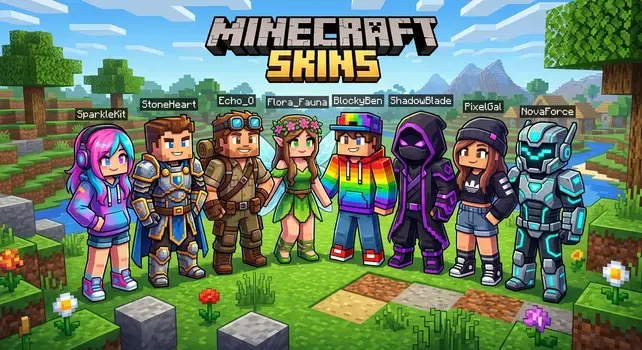
Minecraft skins are image files that wrap around your in-game character model. They replace the default Steve or Alex appearance with any design you choose — from superheroes to original pixel art creations.
Every player on a multiplayer server sees your skin. A distinctive look helps friends recognize you instantly and makes your gameplay experience feel personal. Mojang Studios built this customization feature into the game from its earliest public releases, and the community has created millions of unique designs since then.
| Feature | Detail |
| File Format | PNG |
| Resolution | 64×64 pixels (modern) or 64×32 pixels (legacy) |
| Default Characters | Steve (Classic), Alex (Slim) |
| Customization Areas | Head, Body, Arms, Legs, Outer Layers |
| Cost | Free or paid via Marketplace |
How Do You Change Your Minecraft Skin on Java Edition?
Changing minecraft skins on Java Edition takes less than a minute through the official launcher. Open the Minecraft Launcher, click your profile name in the top-left corner, and select the “Skins” tab.
From there, click “New Skin,” choose your model type (Classic or Slim), and upload your PNG file. The next time you load into a world, your new appearance will be visible if you click “Save & Use”.You can revert to Steve or Alex anytime from this same menu.
- Always use a 64×64 PNG file for best results.
- Name your skin something memorable so you can find it later.
- Keep a backup folder of your favorite designs on your computer.
| Step | Action | Time Required |
| 1 | Open Minecraft Launcher | 5 seconds |
| 2 | Click profile name → Skins tab | 5 seconds |
| 3 | Select “New Skin” | 3 seconds |
| 4 | Choose model type | 3 seconds |
| 5 | Upload PNG file | 10 seconds |
| 6 | Click “Save & Use” | 2 seconds |
For the official step-by-step instructions, visit the Minecraft Help Center.
How Do You Install Minecraft Skins on Bedrock Edition?
Bedrock Edition handles minecraft skins differently because it runs on consoles, mobile devices, and Windows 10/11. Open the game, tap the Dressing Room button on the main menu, and browse the available skin packs or choose “Classic Skins” for your own uploads.
On mobile and Windows, you can import custom PNG files directly. Console players on Xbox, PlayStation, and Nintendo Switch rely primarily on the in-game Marketplace and pre-loaded skin packs due to platform restrictions on external file access.
| Platform | Custom Upload | Marketplace Access | Pre-loaded Packs |
| Windows 10/11 | Yes | Yes | Yes |
| iOS / Android | Yes | Yes | Yes |
| Xbox | No | Yes | Yes |
| PlayStation | No | Yes | Yes |
| Nintendo Switch | No | Yes | Yes |
Where Can You Download Free Minecraft Skins Safely?
Finding trustworthy sources for minecraft skins protects your device from malware and stolen accounts. Stick to community-vetted platforms that scan uploads and maintain active moderation teams.
Three reliable sites dominate the space. NameMC pulls skins directly from active player profiles, giving you a live preview of how each design looks in-game. The Skindex offers a massive searchable library with a built-in editor. Planet Minecraft combines skin downloads with an active community that rates and reviews every submission.
- Download PNG files only — never click executable links.
- Avoid any site requesting your Mojang or Microsoft login.
- Check user ratings before downloading unfamiliar designs.
| Website | Skin Count | Built-in Editor | Safety Rating |
| NameMC | 2M+ | No | ★★★★★ |
| The Skindex | 4M+ | Yes | ★★★★☆ |
| Planet Minecraft | 1M+ | Yes | ★★★★☆ |
How Do You Create Custom Minecraft Skins From Scratch?
Building your own minecraft skins gives you complete creative control over every pixel. Start with a blank 64×64 template and use a skin editor to paint each body section individually.
The template divides into specific zones: the head occupies the top portion, the torso sits in the middle, and arms and legs fill the remaining space. Modern templates include an outer layer that adds depth — think hats, jackets, or hair overlays that sit on top of the base model.
- Begin with a solid base color before adding details.
- Use the outer layer for accessories like hoodies or helmets.
- Zoom in to 400% or higher for precise pixel placement.
| Body Part | Pixel Area (64×64) | Outer Layer Available |
| Head | 8×8×8 | Yes (Hat layer) |
| Torso | 8×12×4 | Yes (Jacket layer) |
| Right Arm | 4×12×4 | Yes (Sleeve layer) |
| Left Arm | 4×12×4 | Yes (Sleeve layer) |
| Right Leg | 4×12×4 | Yes (Pants layer) |
| Left Leg | 4×12×4 | Yes (Pants layer) |
What Are the Best Minecraft Skin Editors Available Today?
A good skin editor turns a blank template into a polished character design without requiring advanced art skills. The best tools provide 3D previews, layer controls, and one-click export to PNG.
Blockbench works as a free desktop and browser application with powerful pixel-painting tools. Skindex Editor runs entirely in your browser and connects directly to its skin library. Nova Skin offers advanced shading and gradient tools for creators who want professional-level detail on their custom designs.
| Editor | Platform | 3D Preview | Layers | Cost |
| Blockbench | Desktop / Web | Yes | Yes | Free |
| Skindex Editor | Web | Yes | Yes | Free |
| Nova Skin | Web | Yes | Yes | Free |
| MCSkin3D | Desktop | Yes | Yes | Free |
| Skin Editor (mobile) | iOS / Android | Yes | Limited | Free / Paid |
Which Minecraft Skin Packs Are Worth Buying in 2025?
The Minecraft Marketplace sells curated skin packs created by official community partners. These packs guarantee quality, compatibility, and safety since Microsoft reviews every submission before listing.
Popular categories include fantasy characters, holiday themes, animal hybrids, and licensed crossover packs. Prices typically range from 310 to 660 Minecoins (roughly $2 to $5 USD). Free packs rotate regularly, so check the Marketplace weekly for new additions.
- Look for packs rated 4 stars or higher by the community.
- Free seasonal packs drop around Halloween, Christmas, and summer events.
- Minecoin bundles go on sale periodically — stock up during discounts.
| Skin Pack | Creator | Minecoins | Theme | Rating |
| Greek Mythology | Mojang Studios | Free | Mythology | ★★★★★ |
| Star Wars Classic | Disney | 660 | Sci-Fi | ★★★★☆ |
| Cute Animals | Jigarbov | 310 | Animals | ★★★★☆ |
| Halloween Costumes | Blockworks | 310 | Seasonal | ★★★★☆ |
| Festival Packs | Various | Free | Cultural | ★★★★☆ |
How Do You Fix Minecraft Skins Not Showing Up?
A missing or invisible skin frustrates players, especially right before a multiplayer session. The most common causes include server-side restrictions, outdated game versions, and corrupted PNG files.
Start by checking your internet connection — the game needs to reach Mojang’s skin servers to load your design. Next, verify that your PNG file matches the correct 64×64 dimensions. If you play on a third-party server, ask the admin whether they enforce custom skin policies, as some competitive servers lock all players to default appearances.
- Clear your game cache if the skin fails to load repeatedly.
- Restart the launcher completely after uploading a new file.
- Test your skin in single-player before joining a server.
| Problem | Cause | Fix |
| Skin shows as Steve/Alex | Server restriction | Switch servers or contact admin |
| Skin appears blank | Corrupted PNG | Re-download and re-upload |
| Skin loads slowly | Weak connection | Restart router or wait 60 seconds |
| Skin looks stretched | Wrong model type | Toggle Classic ↔ Slim in launcher |
| Skin missing on console | Platform limitation | Use Marketplace packs instead |
For persistent issues, the official Minecraft bug tracker lets you report skin-loading problems directly to the development team.
What Is the Difference Between Classic and Slim Skin Models?
Mojang offers two body types for minecraft skins: Classic (Steve) and Slim (Alex). The only physical difference is arm width — Classic arms measure 4 pixels wide while Slim arms measure 3 pixels.
Choosing the wrong model type causes visible distortion. A skin designed for the Slim model will look stretched on a Classic body, and vice versa. Always check the model type before uploading your file.
| Feature | Classic (Steve) | Slim (Alex) |
| Arm Width | 4 pixels | 3 pixels |
| Shoulder Alignment | Symmetrical | Slightly narrower |
| Best For | Male characters, bulky designs | Female characters, slender designs |
| Available On | Java & Bedrock | Java & Bedrock |
| Default Assignment | New accounts (random) | New accounts (random) |
How Do You Upload Minecraft Skins to Your Profile?
Uploading your design to your profile ensures it follows you across every world and server you join. The process differs slightly between Java and Bedrock but takes under a minute on both.
On Java, use the launcher’s Skins tab as described earlier. On Bedrock, open the Dressing Room, select “Classic Skins,” tap the blank model icon, and choose “Choose New Skin” to browse your device’s files. Once uploaded, the skin syncs to your Microsoft account automatically.
- Save multiple skins in your launcher for quick switching.
- Name each skin clearly (e.g., “PvP_Red,” “Casual_Blue”).
- Your profile skin updates across all servers within seconds.
| Platform | Upload Method | Sync Type | Max File Size |
| Java Edition | Launcher → Skins tab | Cloud (Mojang) | 256 KB |
| Bedrock (Mobile) | Dressing Room → Import | Cloud (Microsoft) | 256 KB |
| Bedrock (Windows) | Dressing Room → Import | Cloud (Microsoft) | 256 KB |
| Bedrock (Console) | Marketplace only | Cloud (Microsoft) | N/A |
Are Custom Minecraft Skins Safe for Kids to Use?
Parents often worry about whether downloading minecraft skins exposes children to harmful content or security risks. The short answer: skins from reputable sources are completely safe because they are simple image files with no executable code.
A PNG skin file cannot contain viruses, trackers, or scripts. The real risk comes from fake download sites that bundle malware with skin files or trick users into entering login credentials. Teach kids to use only trusted platforms like NameMC, The Skindex, or the official Marketplace.
- Set browser bookmarks to approved skin sites only.
- Enable SafeSearch to filter out inappropriate skin galleries.
- Review downloaded skins together before your child applies them.
| Safety Check | Safe | Risky |
| File type | .PNG only | .EXE, .ZIP, .JAR |
| Website | NameMC, Skindex, Marketplace | Unknown blogs, pop-up ads |
| Login required | No (for downloads) | Yes (red flag) |
| Payment | Marketplace Minecoins only | External payment links |
| Content rating | Family-friendly filters available | Unmoderated galleries |
How Do Minecraft Skins Work Across Different Platforms?
Cross-platform play means your skin should ideally follow you everywhere. Bedrock Edition syncs skins through your Microsoft account, so a skin you set on your phone appears on your Xbox and Windows PC automatically.
Java Edition operates on a separate system through Mojang accounts (now migrated to Microsoft). A skin you upload on Java will not appear on Bedrock, and vice versa. You need to upload your design separately on each edition if you play on both.
- Bedrock cross-play covers mobile, console, and Windows.
- Java remains PC-exclusive with its own skin server.
- Account migration to Microsoft unified login but not skin storage.
For full account migration details, visit minecraft.net.
| Scenario | Java Skin Visible? | Bedrock Skin Visible? |
| Playing Java on PC | Yes | No |
| Playing Bedrock on PC | No | Yes |
| Playing Bedrock on Xbox | No | Yes |
| Playing Bedrock on Switch | No | Yes |
| Cross-play Bedrock server | No | Yes (all Bedrock players) |
Your Next Step Starts Now
Your character deserves a look that matches your personality. Whether you grab a free design from NameMC, build one pixel by pixel in Blockbench, or pick up a polished pack from the Marketplace, the right skin transforms how you experience every world you enter. Open your launcher, pick a design that excites you, and jump into your next adventure looking exactly the way you want. Share your favorite skin source in the comments — the community always needs fresh recommendations, and your pick might become someone else’s new go-to look.